From the first fault to the full asset history.
GeoWorks is estate maintenance and asset management software for multi-site operators. Here is what each part does, how it works day to day, and what your team gets from it.
One record for every asset, and everything done to it.
When asset data lives in spreadsheets and inboxes, nobody can say what is installed where, or what was last done to it.
What you getEvery team works from the same version of the estate, and every asset keeps its full maintenance history.
- Structure the estate the way you run it: estate, site, location, installation and asset.
- Group assets into families such as fire, electrical, mechanical and lighting. Groups drive statutory categories and reporting.
- Give each asset type its own attributes and maintenance regime.
- Attach jobs, schedules, documents, inspections and compliance records to the right object.

One front door for every fault.
Faults arrive by phone, email and word of mouth, and the person who reported one rarely hears what happened next.
What you getReports stay in one queue, with a reference and progress updates for the person who raised them.
- Take reports by phone, by email or through a branded fault-reporting form for your own clients and end users.
- Every route lands in the same queue.
- Each report is tagged with site, location zone, assets and criticality, then accepted or rejected.
- The person reporting gets a reference number and updates as the job moves.
Every job carries its site, asset, supplier and cost.
When jobs are spread across emails and trackers, it is hard to see who is doing what, and when.
What you getOne configurable pipeline from triage to sign-off, with clear status at every stage.
- Raise the job with supplier, priority, service and cost centre, with photos and documents attached.
- Assign the operative and set the start date on the visual resource planner.
- Move it through stages and approval gates configured to how you operate.
Contractors and suppliers
- Onboard suppliers, manage operatives and allocate work, whether in-house or contracted.
- Set a preferred supplier for each site.
- Use supplier performance reports for every review.
Works offline. Syncs when you are back.
Basements, plant rooms and rail environments are where the signal drops and paperwork goes missing.
What you getEvidence is captured where the work happens, and lands on the asset history once signal returns.
- Complete risk assessments before work begins.
- Capture photos before and after the work, against the job record.
- Record what was done, how long it took and the materials used.
- Collect customer sign-off on site before the job closes.
- Available for iOS and Android.

Every cost stays attached to the job.
When spend is reconciled after the event, overruns are found too late to control.
What you getFinance stops being a separate reconciliation exercise, and each job closes with its costs and audit trail on the asset.
- Suppliers quote at sign-off, or through pre-works estimation before anyone attends.
- Set Order Not To Exceed (ONTE) limits for each job type, so spend is controlled before it is committed.
- Suppliers apply for payment each billing cycle, and your finance team audits each application against the budget.
- GeoWorks connects to your finance system rather than replacing it.
Plan once. Every visit raises itself.
Planned visits tracked by hand slip quietly, and you find out when an inspection has already been missed.
What you getFewer trackers kept by hand, and evidence ready to export when an auditor asks.
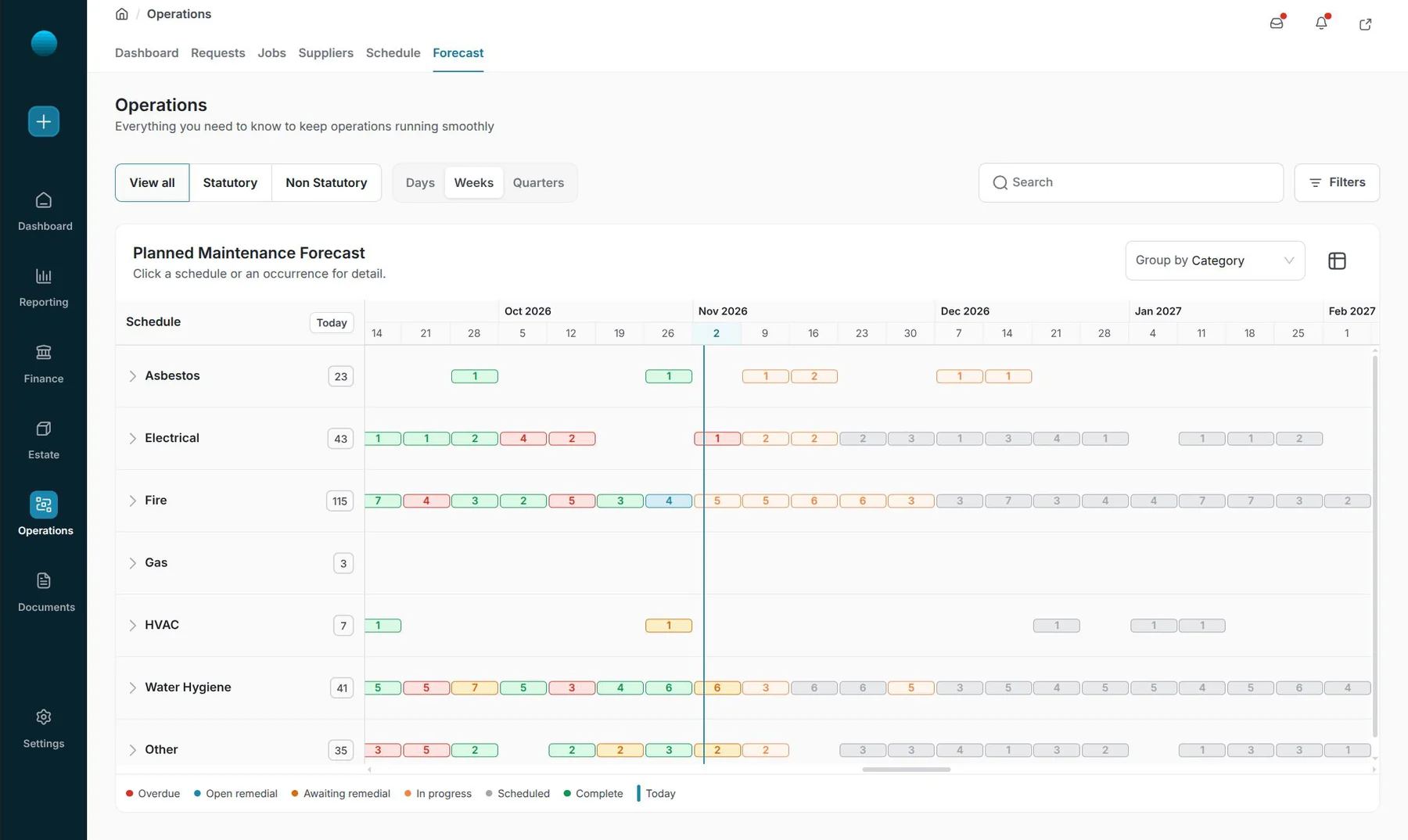
- Create a schedule against a site, location, installation or asset, with its frequency, service and statutory status.
- Jobs release on the calendar or on your own periods, such as rail periods, and go straight to the preferred supplier for each site.
- Suppliers deliver in the same workflow as reactive jobs, on mobile and offline.
- See every schedule on one forecast by day, week or quarter, and spot gaps and clashes before a visit is due.
Compliance and remedials
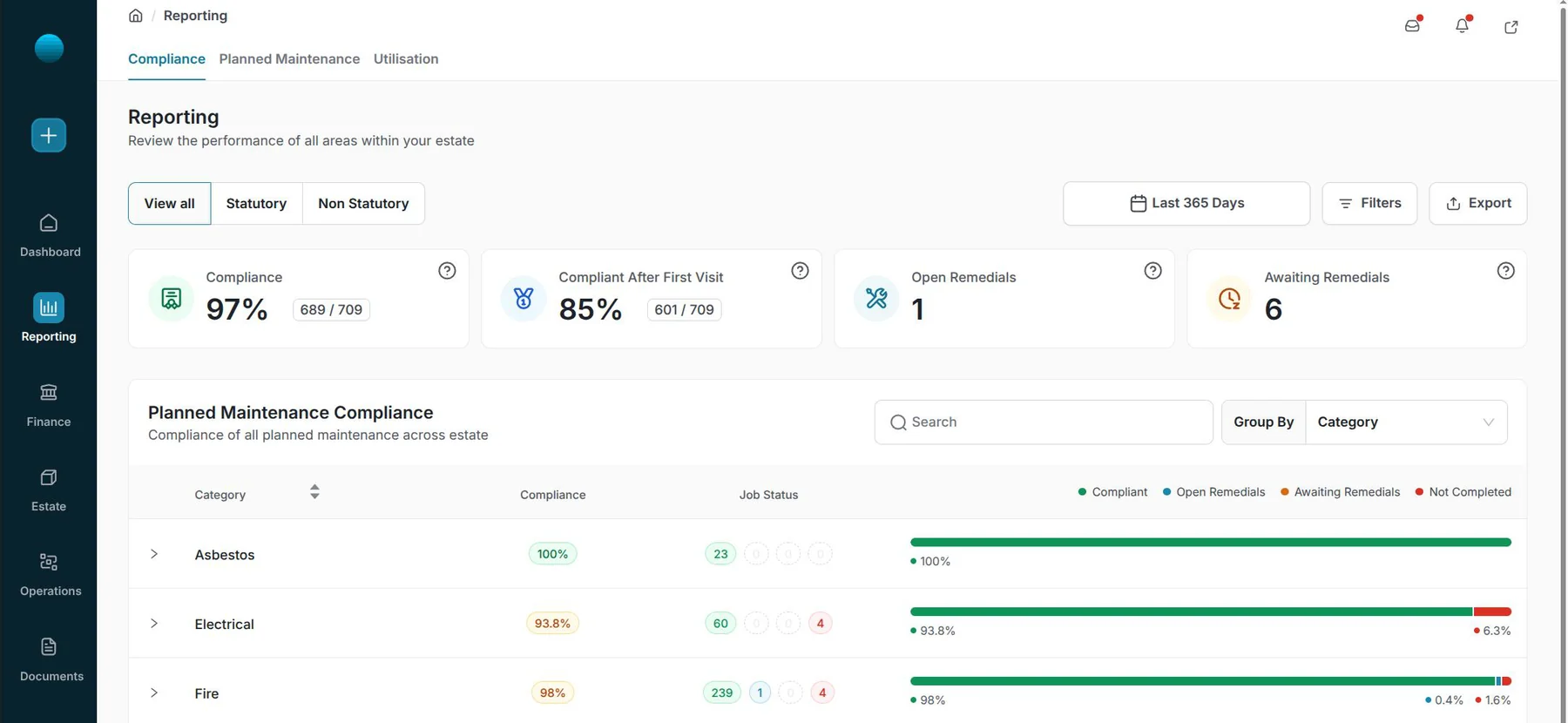
- Switch between all, statutory and non-statutory work in one click.
- Drill from a category to a schedule, a site and a single visit, with its job, supplier, reference, status and history.
- Open and awaiting remedials are counted on their own, so follow-up work stays in sight.
- Compliant after first visit shows how often work is done properly first time.
Live performance, not a month-end reconstruction.
Building a report from separate exports takes days, and the numbers are out of date by the time anyone reads them.
What you getOperations, finance and compliance read the same live data, and SLA misses show up while you can still act.
- Pre-built reports across SLA, supplier performance, planned maintenance, finance, compliance, asset condition and satisfaction.
- Filter by site, region, supplier, service, category and date range.
- Export for client reporting, and connect to the systems you already run through open APIs.
Routine hand-offs, run by flows you control.
The same small decisions and updates take up hours of your team’s day.
What you getRoutine work moves on its own, and every decision can be checked.
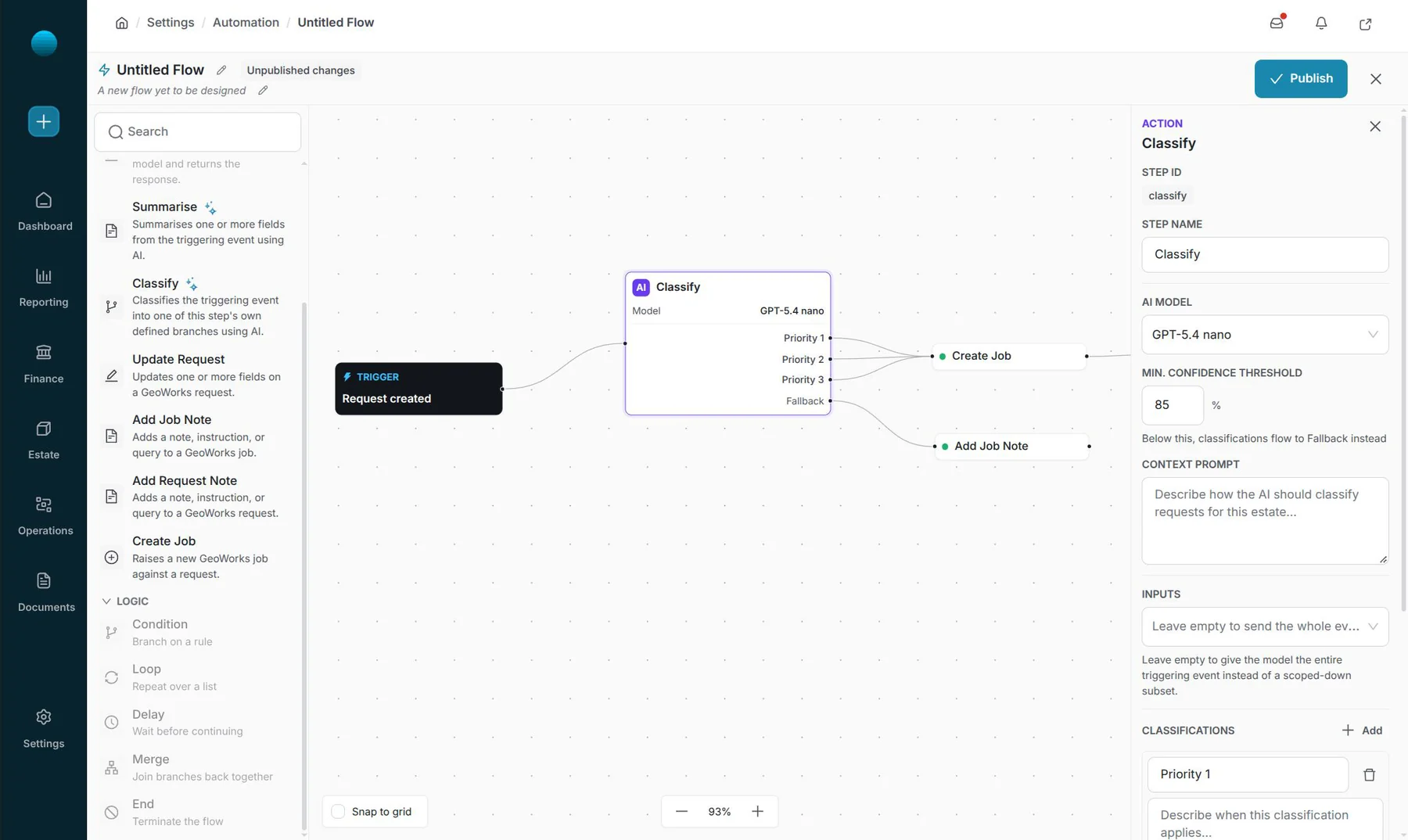
- Start a flow from any GeoWorks event: a record created, updated, assigned, approved or completed.
- Add Classify to sort an event into branches you define, or Summarise to write a short summary. Both read a context prompt about your estate.
- Raise jobs, update requests and add notes, with different actions on each branch. No code to write.
- Set a minimum confidence. Below it, the decision goes to a person instead of guessing.
- Edit in draft. Nothing goes live until you publish it.
- Every run is logged with an audit ID, status, total time and a step-by-step timeline.
Flows teams start withNotify the supplierSummarise new requestsKeep requests in stepClose the loopConfirm the visit
See it on your estate.
We will map GeoWorks to your assets, sites and workflows, and design the right pipeline with you during onboarding.